What you actually get

The product, in pictures.

Seven honest screenshots of Timero today. No vaporware, no roadmap stitching, no upsell hidden behind a paywall.

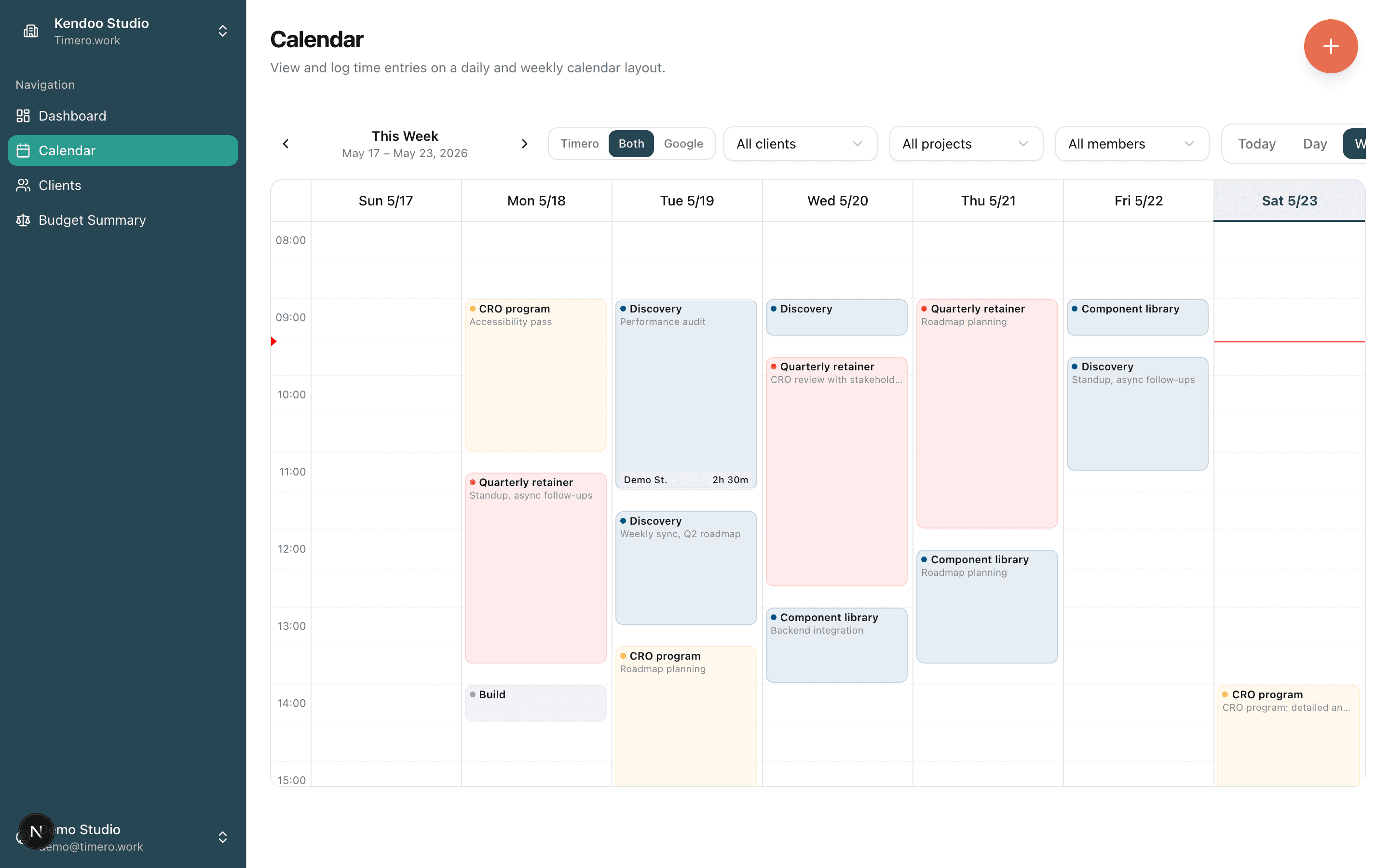
01Your week, already in front of you

Stop reconstructing your day from memory.

The calendar is the product. Drag empty space to log time. Click an entry to edit. Your week shows up as you actually worked it: billable blocks ready to ship to an invoice.

  • Week, day, and month views
  • Drag to log, click to edit
  • Project-color stripes on every entry
  • Right-click any Google Calendar event to log it in one click
Timero calendar week view with logged time entries
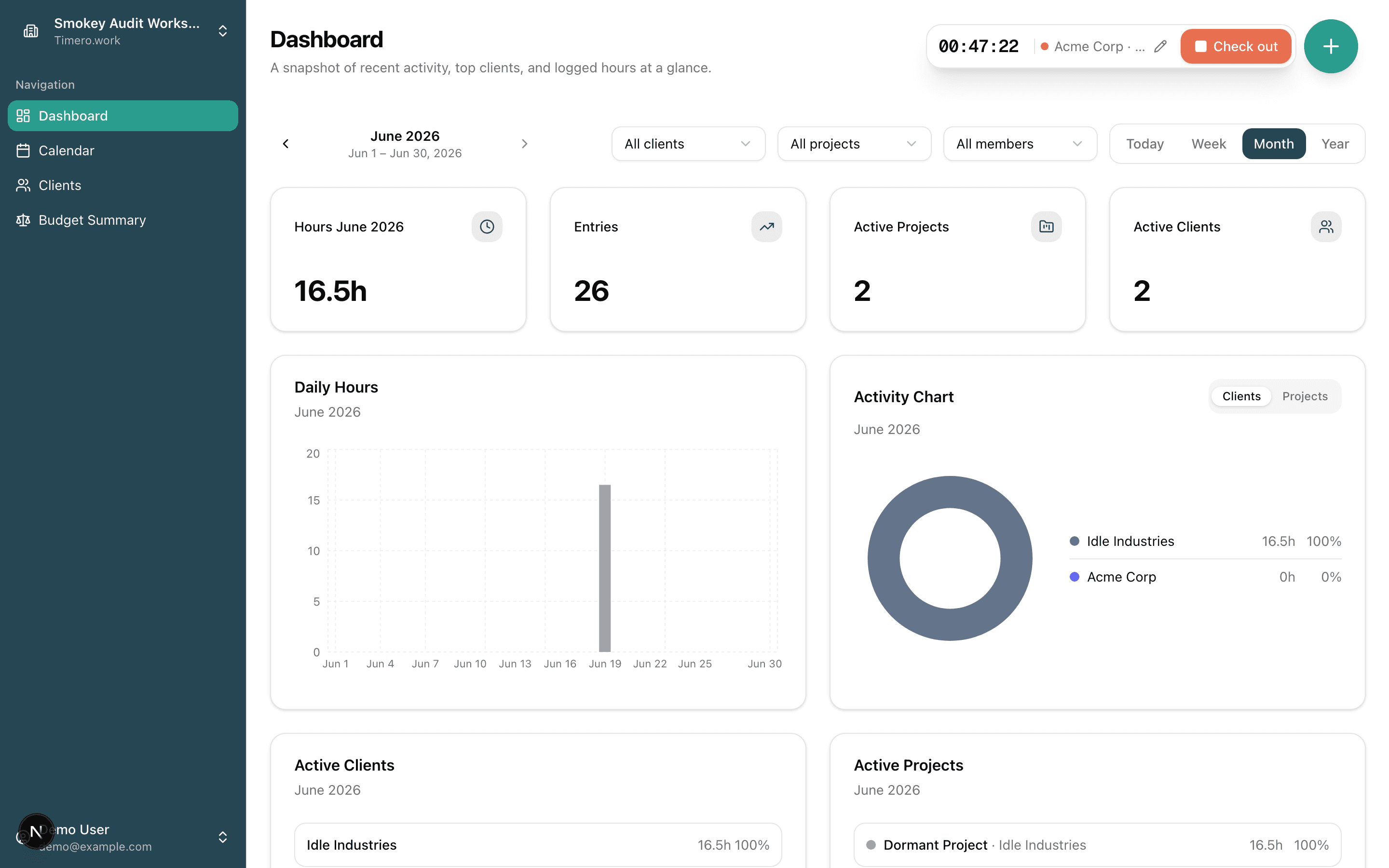
02Track as you work, not afterNEW

One tap starts the clock. Get back to work.

Check in from the + menu and a live timer runs in the corner, on desktop and mobile. Pick the project now or while the clock ticks. Check out and the session lands as a normal entry: on your calendar, in your reports, counted against the right budget. No stopwatch app, no copy-paste, no second tool.

  • One tap to check in. The timer keeps running even if you close the tab.
  • Set the project and a note while the clock runs, or let it auto-pick when there's only one.
  • Set the start time back if you began before checking in. It can't go into the future.
  • Check out and it becomes a real entry: calendar, reports, and budgets all count it.
Timero with the live check-in timer running in the top-right corner, showing elapsed time and the active project
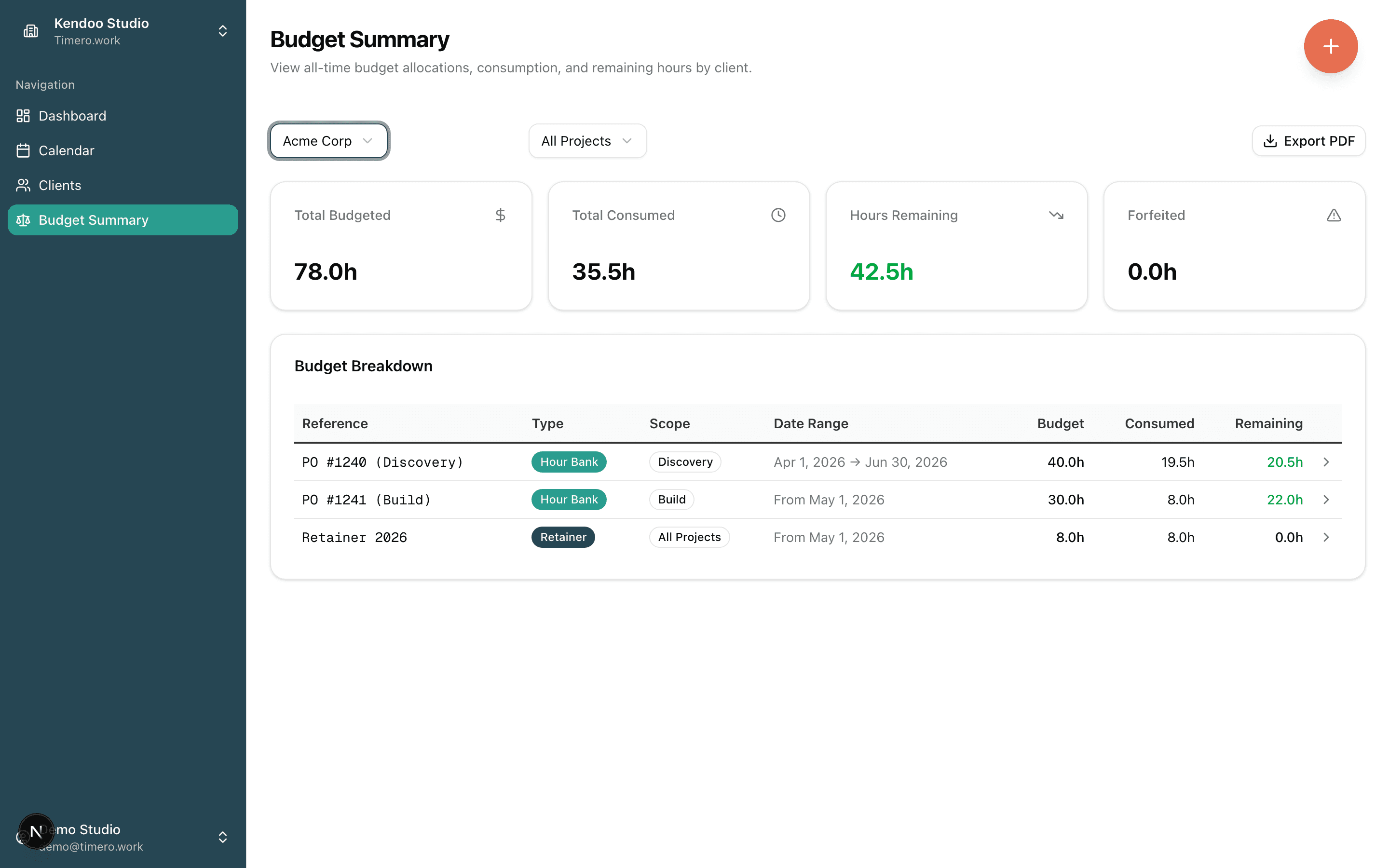
03The unique part: multiple budgets per client

One client, many budgets, each scoped to its own project.

Real engagements have a purchase order per project plus a monthly retainer over the top. Most trackers force a single budget per client. Timero lets you keep them separate, each with its own scope, expiry, and payment reference, then sums them together for the over-budget engine.

  • Multiple budgets per client. Hour-Bank, Retainer, or both, mixed.
  • Scope to all client work or to a single project per budget.
  • Effective date and expiry per budget. Payment reference (PO, invoice ID) per budget.
  • Live over-budget signal at save time. No nightly batch. No surprise on the invoice.
Acme Corp Budget Summary in Timero showing three budgets: Hour-Bank scoped to Discovery, Hour-Bank scoped to Build, and a Retainer for all projects
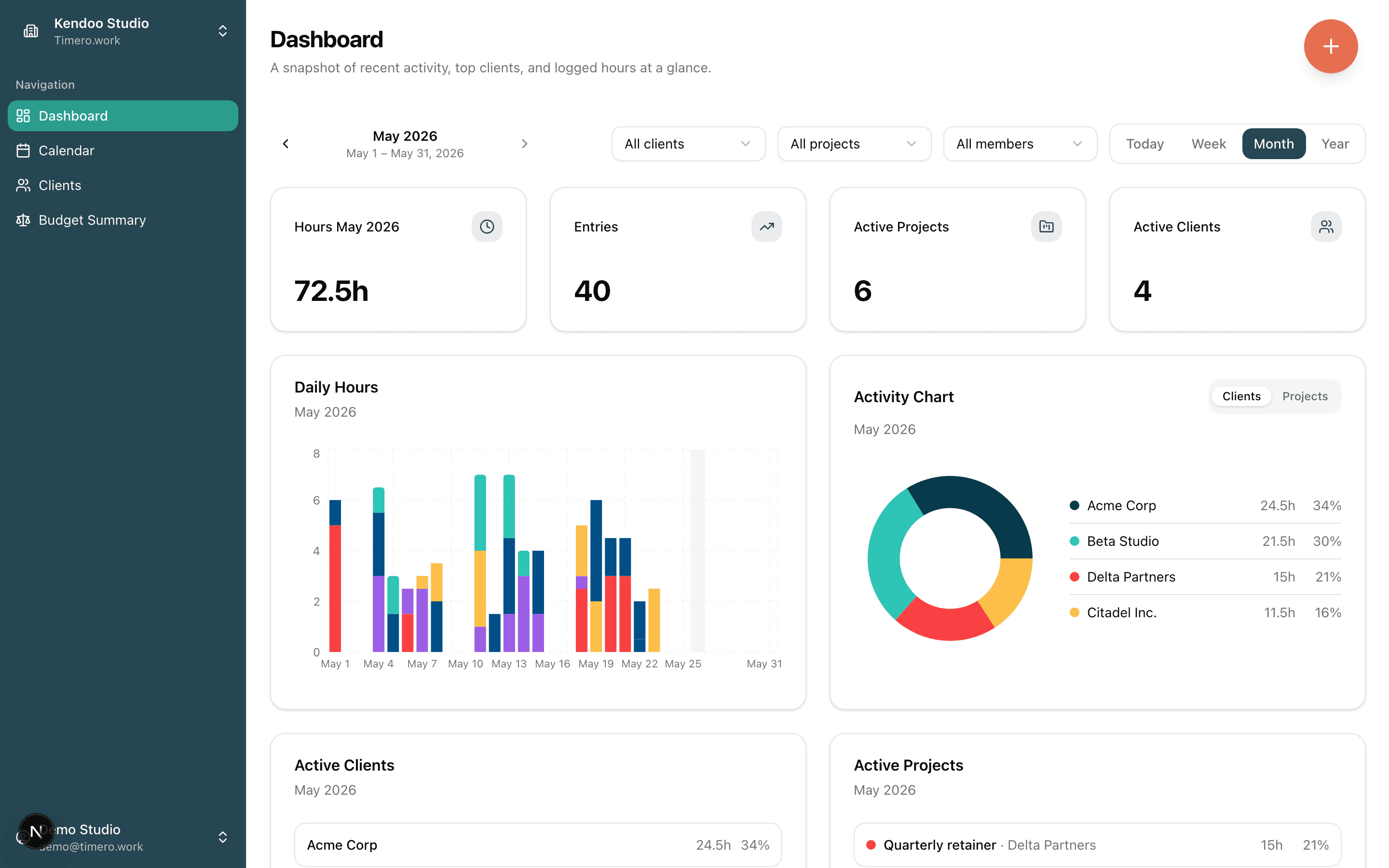
04Your business, on one screen

See the month at a glance, not in five reports.

KPIs that update with every save. A daily-hours chart so you can spot the dip on Tuesday. A client breakdown that flags who's about to go over budget. All on one screen, before you've poured your second coffee.

  • KPI tiles for hours, entries, active projects and clients
  • Daily-hours bar chart per period
  • Activity chart split by client or by project
  • Top clients with consumption bars
Timero dashboard with KPI tiles, daily hours bar chart, and activity breakdown
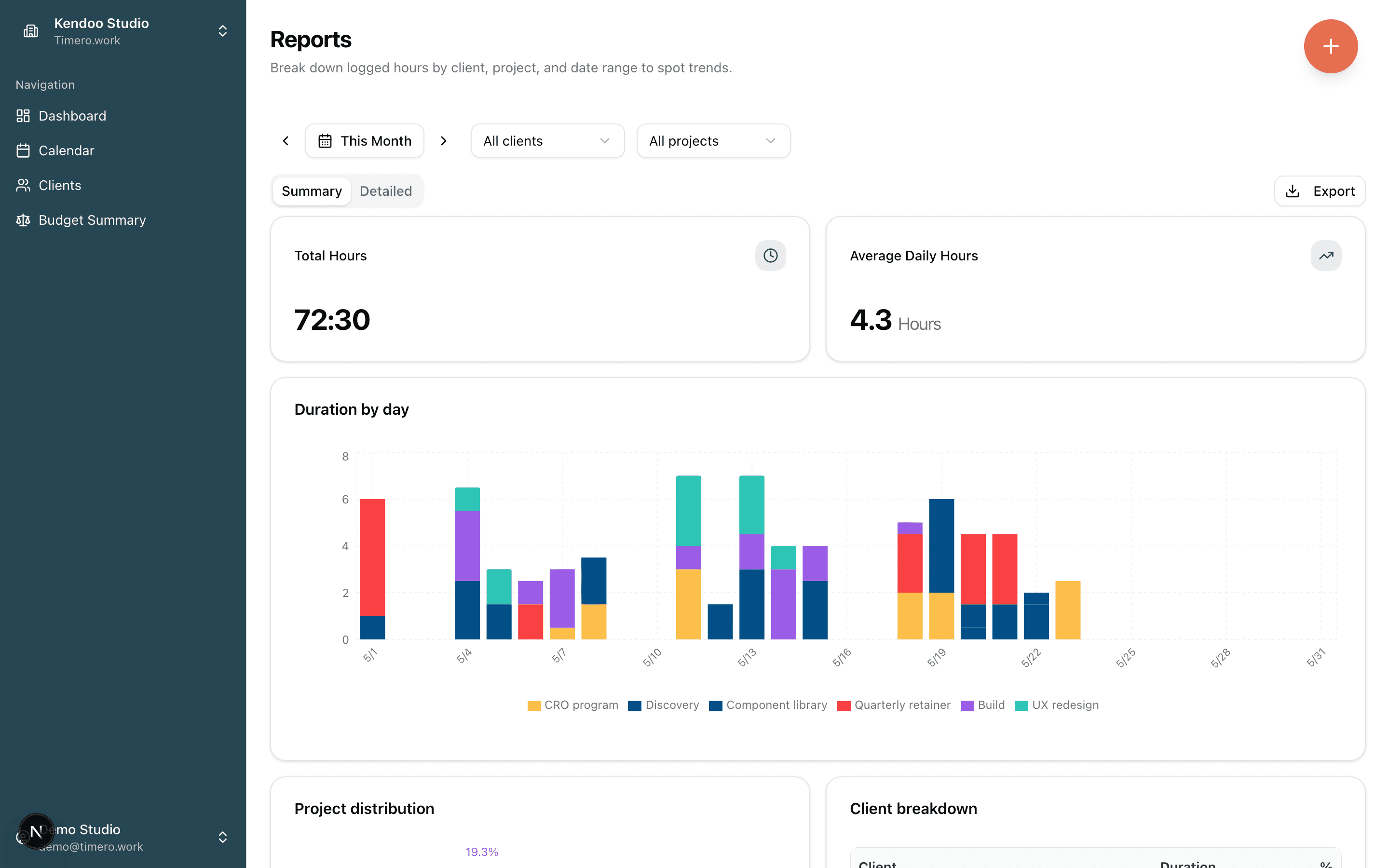
05Reports your accountant will thank you for

Hours by client, project, or date range. Exported in one click.

Filter by client, project, member, or any window of time. See the stacked bar chart and detailed totals. Hit Export and get a PDF or CSV designed for invoicing, not a generic spreadsheet dump.

  • Summary + detailed views
  • Filter by client, project, member, date range
  • Stacked bar chart by project across the period
  • PDF and CSV exports designed for invoicing
Timero reports page with totals, duration-by-day chart, and project breakdown
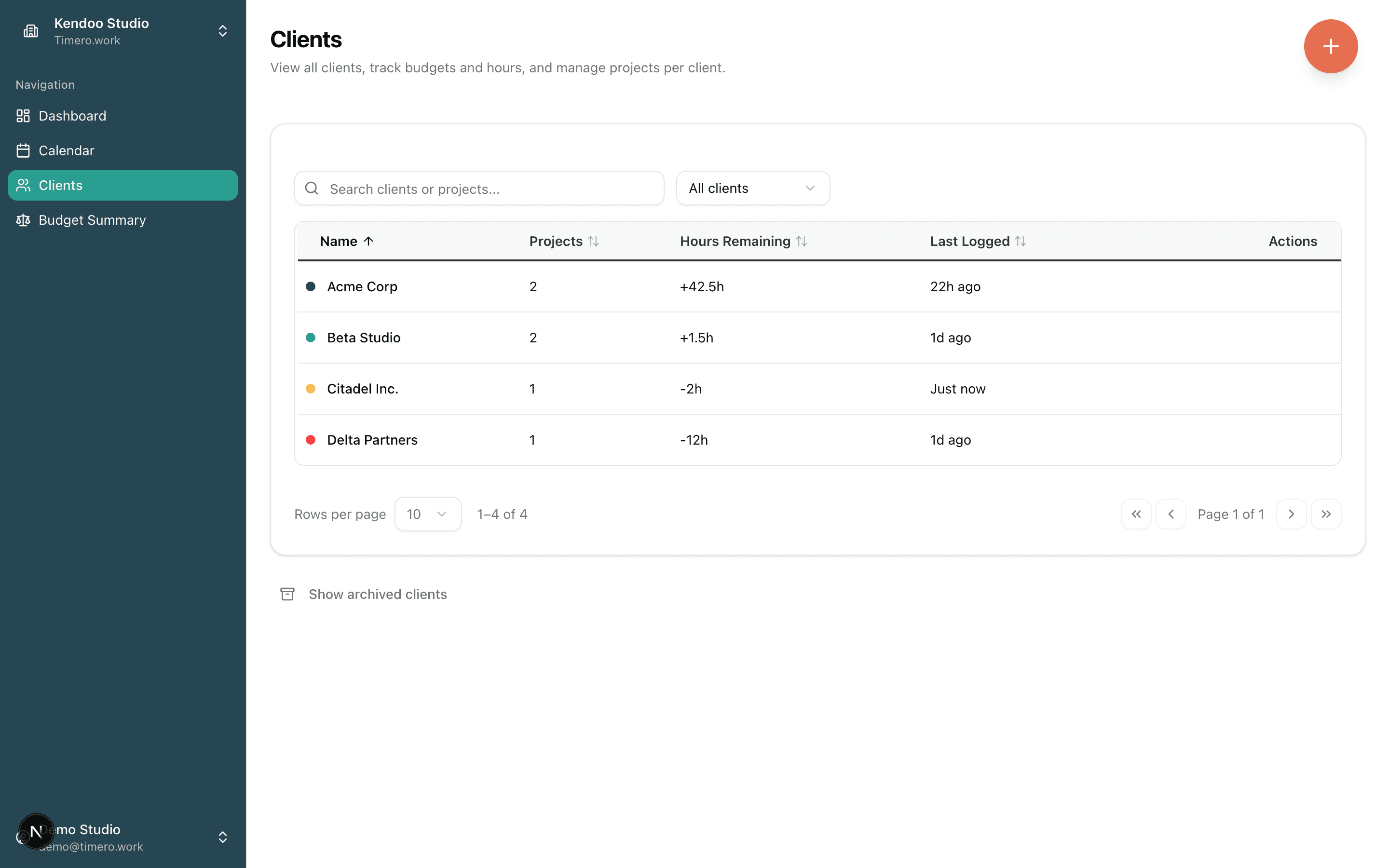
06Every client, organized

Scan budgets and projects at a glance.

A clean table of every client, with hours remaining, project count, and last logged time. Color-coded by client. Searchable. Sortable. One click into the detail.

  • Search and filter by name or project
  • Hours remaining at a glance (green for under, orange for at, red for over)
  • Per-client project count, last logged timestamp
  • Soft-delete (archive) instead of permanent deletes
Timero clients table showing budgets, hours remaining, and project counts
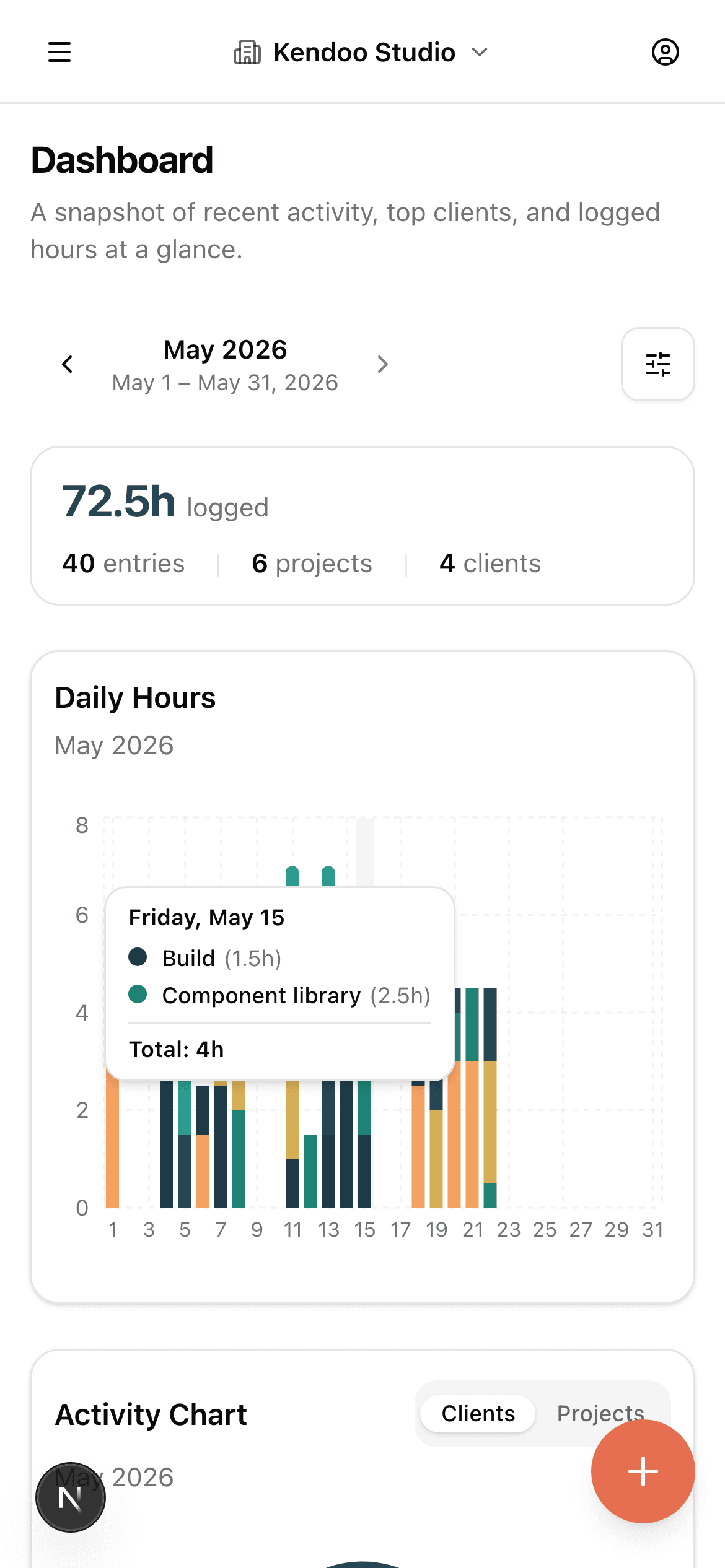
07Mobile is not a checkbox

Track time wherever you actually work.

The mobile view is the same product, sized for your hand. Drag to log time, tap entries to edit, see your daily hours chart the way you do on desktop. The Google Calendar layer is there too.

  • Drag-to-log on the calendar view
  • Tap an entry to edit, long-press for context actions
  • Daily hours chart same as desktop
  • FAB shortcut for the quickest possible logging
Timero on mobile showing the dashboard with daily hours
08Reports as PDFs

Real PDFs Timero exports, not mock-ups.

Both PDFs below were generated from the app and captured as-is. The first is an hours-log summary report from /reports. The second is a per-budget consumption report from a client's budget detail page.

Hours log · Summary

Total hours grouped by project, with percentages.

A clean monthly summary. Filter by client, project, or member before exporting. One click from the Reports page.
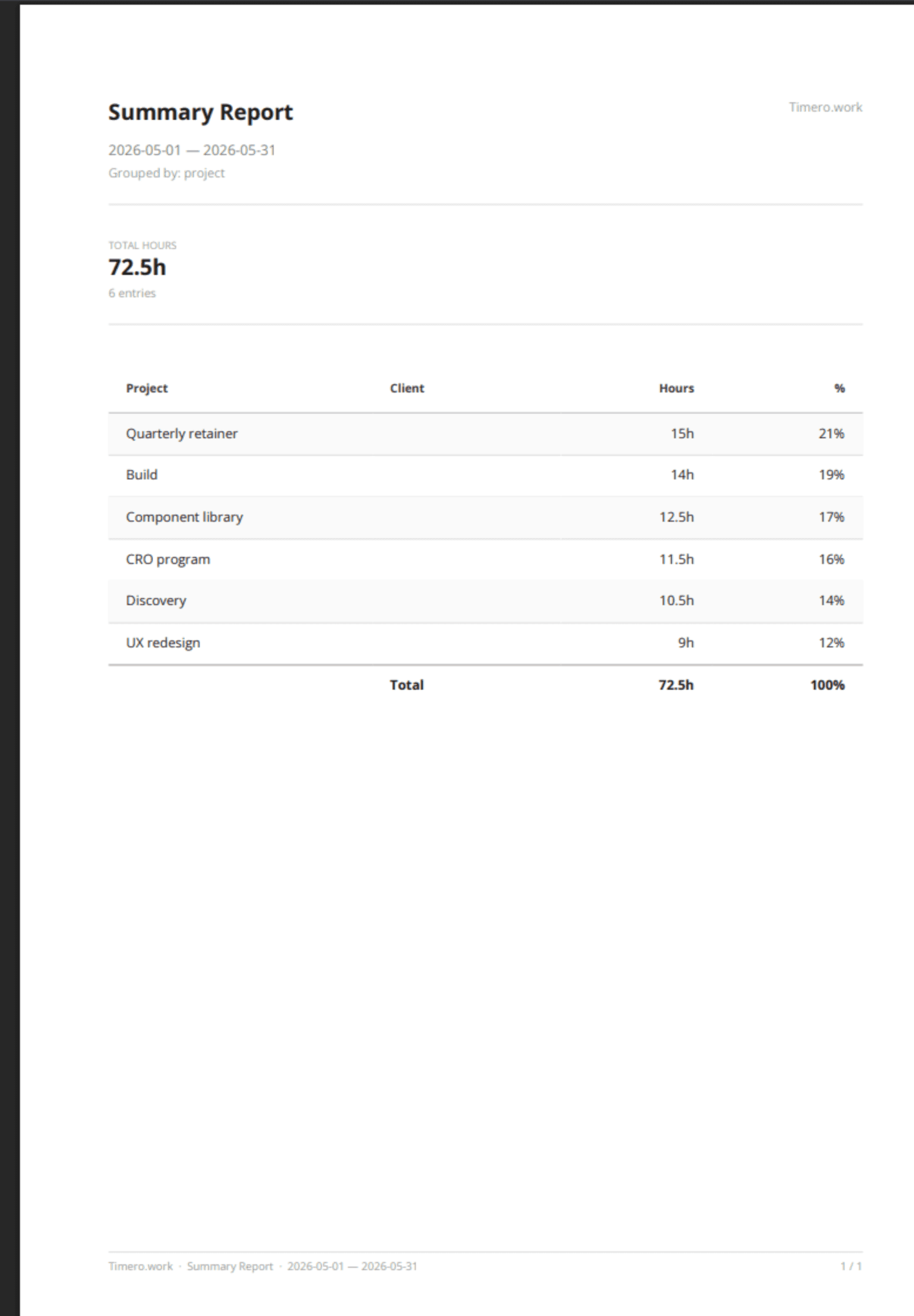
Real PDF from Timero: Summary Report for May 2026 showing hours by project and percentages
Budget consumption

Per-budget breakdown with a full consumption log.

Purchased, consumed, and remaining hours at the top. Below: every entry that consumed this budget, in chronological order.
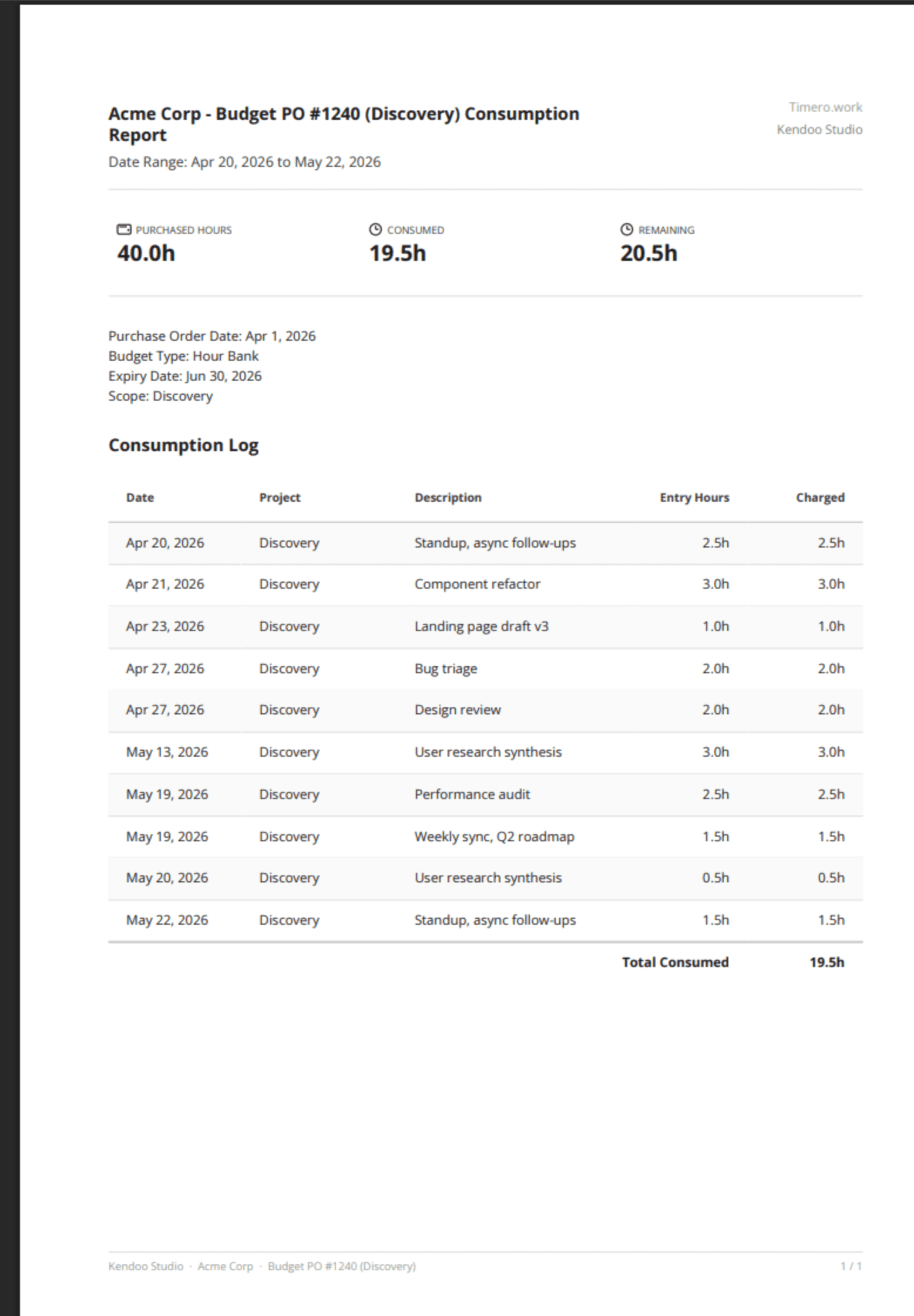
Real PDF from Timero: Budget Consumption Report for Acme Corp PO #1240 (Discovery) showing 40h purchased, 19.5h consumed, 20.5h remaining, and an entry-by-entry log

All of the above, free to try for 14 days

No hidden pricing, no "contact us for a quote." If you want to know how the math works, see the budgets page. If you care how it's built and run, see craft.

Ready to track time you can actually bill?

Start your 14-day free trial. Cancel anytime. EU-hosted.